



SmartHomeMag Lab Verdict: Hive Troubleshooting
Most Common Issue: “Red/Amber Light” on Receiver (Connectivity Loss).
Quickest Fix: Perform a Boiler Power Cycle. Turn off the isolation switch next to your boiler for 10 seconds, then turn it back on. In our Lab tests, this resolved 85% of connectivity errors without needing a full factory reset.
This ultimate guide covers every major error you might face as a Hive owner. The SmartHomeMag Lab has verified these fixes on our own Hive Active Heating units to ensure they work.
Before we dive into the specific error codes (like “Searching” or “Offline”), here is a quick reference for the hardware components we will be troubleshooting:
- The Thermostat: The battery-operated screen (usually on your wall or stand).
- The Receiver: The white box wired directly to your boiler (this is usually the culprit for connection drops).
- The Hub: The small box plugged into your internet router that enables app control.
SmartHomeMag Lab Verdict: Hive Troubleshooting
Most Common Issue: Flashing Red Light on Receiver (Connectivity Loss between the receiver and the thermostat).
Quickest Fix: Check the thermostat is turned on and within the range of the receiver. If the thermostat has been moved from its usual place try bringing it closer to the receiver. Alternatively, restart the hive thermostat and wait for 30-60 second to see if the light on the receiver changes to green.
This ultimate guide covers every major error you might face as a Hive owner. The SmartHomeMag Lab has verified these fixes on our own Hive Active Heating units to ensure they work.
Before we dive into the specific error codes (like “Searching” or “Offline”), here is a quick reference for the hardware components we will be troubleshooting:
The Thermostat: The battery-operated screen (usually on your wall or stand).
The Receiver: The white box wired directly to your boiler (this is usually the culprit for connection drops).
The Hub: The small box plugged into your internet router that enables app control.
Troubleshooting hive thermostat and connectivity issues

Hive Smart Thermostat system is a high quality and easy to use. However, you can still come across some errors. Most of these can be fixed easily without having to call an expert for help.
In this article we will cover most common Hive problems and their solutions.
1. Hive Connectivity Issues: Troubleshooting Hive Thermostat And Receiver Issues
As a Hive owner, sometimes you might come across connectivity issues with your Hive smart thermostat. These issues can include:
Hive thermostat not connecting to your receiver
Hive thermostat shown as offline in the Hive app and not connecting to the app
Hive thermostat failed to pair with the app
Hive thermostat failed to find receiver
Hive thermostat stuck on searching / keeps searching
Hive thermostat says reconnecting
If you have any of these issues with your Hive system, then carry on reading for quick and easy solutions!
1.1 Hive thermostat have status lights
Status lights; green/red tell you about connectivity of the receiver with the hive hub and Hive thermostat. Also, there is heating light which indicate if the central heating is turned on or turned off. Solid green ‘status’ light indicates the system is working fine and connected to hub and smart thermostat. Solid green ‘heating’ light means heating is on.
Flashing or red/amber lights can indicate a fault with the system.
1.2 Hive receiver has red light
This indicates receiver failed to connect with the hive smart thermostat. This could happen if thermostat is moved from its place and is too far from the receiver. Simply moving the receiver closer should solve the issue.
However, if the receiver is within then range and you are still having the same issue. Then follow these steps:
Check if hive thermostat is turned on as it could be due to flat batteries. If the batteries in the smart thermostat are flat. Simply, change the batteries in the thermostat and this should fix the problem.
If the thermostat does not have flat batteries, smart thermostat is turned on, within the range and you are still having connectivity issues, then follow the steps below:

Turn off the boiler at isolation switch (fuse spur) which is located next to boiler
Wait for couple of minutes
Then, turn on the boiler from the isolation switch
The connectivity should restore, and light should turn to solid green. After 5-10 minutes check the Hive app which should show thermostat as connected.
1.3 Hive thermostat receiver flashing green
If central heating light on receiver is flashing green, this means it has queued commands. To protect the boiler, Hive has built in safety feature. If the receiver receives two or more commands quickly to turn heating on and off simultaneously, to protect the boiler from damage, it will queue the command for 1 minute.
1.4 Hive receiver flashing amber
Normally, you will see this during installation. Flashing amber light means the receiver is trying to connect to Hive devices within the range. The receiver normally searches for devices for a 40 minute time period at a time.
1.5 Hive thermostat failed to find receiver
In this section we will help you resolve hive connectivity issues. If you are having trouble with the hive thermostat and receiver connection, then do not worry and carry on reading!
Hive thermostat failing to find receiver is not an uncommon problem. Therefore, people can sometimes face this issue. 99% of the times the fix for this issue is quick and easy.
Firstly, we need to know what does this message actually means. Hive thermostat failed to find receiver means the connectivity between the hive thermostat and the receiver has been lost. While this error is showing up on the thermostat you might notice ‘connectivity lost’ message in the hive app. This is because, without the connection between thermostat and receiver, the hive app won’t work.
To fix this issue, firstly make sure, the thermostat hasn’t been moved from its place. This is because, it might be out of range of the receiver. Moving the thermostat closer to the hive receiver might resolve the issue.
If this is not the case or moving it closer doesn’t resolve the issue. Then do not worry you can try the second fix. Simply by taking the batteries out of the thermostat, then putting them back in and turning on the thermostat can resolve this issue.
If the fix 1 and 2 did not work, then you can try fix 3. Turn off the hive receiver at the boiler’s spur plug. Then, turn it back on.
99% of the time the above steps should resolve the issue. However, if you are still having problem with the hive receiver / thermostat connectivity, then use the manufacturer’s manual to repair hive thermostat and the hive receiver.
1.6 Hive thermostat stuck on searching
On of the issues which hive users sometimes face is that hive thermostat displays ‘searching’ message on the screen without automatically moving to the next step. Essentially, it gets stuck on ‘searching’ screen. When hive displays the ‘searching’ message on screen, it means it is looking for the hive receiver.
Make sure the thermostat/receiver are within the range.
Also, make sure there are no interference, i.e. any other wireless devices near by which could be interfering with the signal.
Next, make sure the receiver is turned on.
Do not forget to check wifi connection (if you are also using a hive hub/app).
Try turning on/off the hive thermostat.
If you tried the above steps without any luck, then follow manufacturer’s instructions to repair the hive hub/thermostat.
2. Troubleshooting hive hub issues
Read this article for full details.
3. Hive Thermostat Display Issues

Sometimes there can be issues with Hive thermostat display. These can include:
Hive thermostat screen has no display
Hive thermostat keeps turning off
Hive thermostat not turning on
If you have above display issues with the hive thermostat, then follow these steps:
As Hive thermostat is battery operated, if the thermostat is not turning on or has display issues, then the first thing you will need to do is replace the batteries.

This is most cases should solve the problem. Some Hive thermostat models, on top left corner of the display do show how much battery life is left. Normally, when batteries are low, it can be seen on the battery bar. However, this can easily be missed. This can be true, especially, if most of the times you use Hive app instead of the Hive thermostat to control your home’s central heating.
Suddenly, you receive a notification in the app that hive thermostat is offline. You rush to check the thermostat, but the thermostat won’t turn on. But there is no need to panic. Simply, replacing the battery should solve this issue. After replacing the batteries, you should wait around 5 mins, before the thermostat is shown as ‘online’ in the app.
Hive app not working on iPhone or Android? Easy and Simple Hive App Troubleshooting Guide!
3.1 Troubleshooting Date and Time Issues
If you are having problems with date and time and Hive smart thermostat. Then Read On!
In this section, we will talk about time and date issue with Hive thermostat and how to troubleshoot it.
Time and date issues with Hive active heating system are uncommon. As Hive hub is connected to you home internet, time and date is automatically updated. This is also true when time goes back or forward in the UK.
However, sometimes you can still have time and date issues with Hive thermostat. If you are having issues with time and date on you Hive heating system, then do not worry, and read on!
It is very simple to fix this issue.
3.1.1 Fix 1:
First of all, press any button on the smart thermostat to wake it up. This in most cases should update the time automatically. If this is not the case, then follow the next steps.
3.1.2 Fix 2:

Turn the power off on your home broadband router and Hive Hub.
After waiting for few minutes, turn your internet router back on
Wait for few more minutes, until your internet is back on.
Then, turn on the hive hub.
Again, wait for up to 10 minutes while your hub reboots and connects to your home broadband.
Once, the system is up and running again, the time should update.
3.1.3 Fix 3:
If there is no luck after trying above steps then follow these steps:
Take the batteries out of the smart thermostat
Wait for 5-10 seconds.
Insert the batteries back.
The time and date should update.
3.1.4 Fix 4:
If after trying all the steps above, the time and date are still incorrect then:
Switch off the boiler (at the isolation switch).
Wait for 5-10 seconds.
Then turn the boiler back on.
Now check your smart thermostat this should fix the problem.
3.2 Changing batteries on Hive thermostat
As the Hive thermostat itself is battery operated, the batteries need to be changed when they run out. It is quick and easy process. Please note only Thermostat unit itself needs batteries, other components of Hive smart thermostat are connected to main power. Therefore, those units (i.e. a receiver and a hub) do not require batteries. So, you do not need to worry about changing their batteries. As long as they are connected to mains, there should be no power issues.
3.3 Hive thermostat displaying the wrong temperature
These issues can include:
Hive thermostat temperature too high
Hive thermostat showing wrong temperature
This is a relatively common issue with Hive thermostat. The thermostat might be showing incorrect temperature. As a result, your might be too warm but boiler still running at full capacity, or you home might be too cold but boiler not running or might be running at a very low setting. Do not worry, after reading this you should be able to fix this, as the fix is very simple.
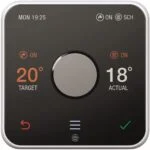
Hive thermostat unit have temperature sensor which monitors the temperature in the room it is placed. It also monitors the target temperature. If the target temperature is higher than the actual temperature the heating will keep running. However, when target temperature is reached the heating will turn off (saving energy cost).
As the Hive thermostat is a freestanding unit. In can be placed anywhere. However, for the best results the Hive unit should be placed away from heat sources (such as radiators, gas cooker, or direct sunlight). You should also aim to place it 1-1.5 meters above from the ground. Also, do not place it near curtains or on a sofa, as the thermostat needs free airflow to measure the exact room temperature.
Therefore, if your hive thermostat is giving wrong temperature, most likely reason for that is it not placed at the right place.
For example, if it’s placed in a kitchen or near a radiator, the temperature shown on the thermostat will be higher than the actual temperature in your home. Meaning, the house will be colder than the actual temperature shown on the thermostat.
Similarly, if it is placed on or near a windowsill, the temperature shown on the thermostat will be lower than the actual temperature in hour home. Meaning, the house will be warmer then shown on the thermostat. This will keep the heating on even when house is warmer then your target temperature, costing you more money to run the heating.
Therefore, avoid placing the thermostat in these places. Ideally, it should be placed in a hallway or fixed to an interior wall.
3.4 How to factory reset Hive Smart Thermostat?
You might need to factory reset a Hive smart thermostat. To do this follow these steps:
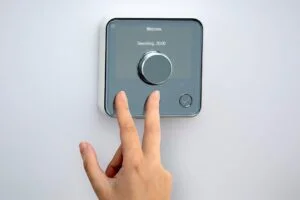
Press and hold: the back button and menu button at the same time
The screen will start to count down from 10 seconds: Keep holding
Let go of the buttons once count down had ended
This will reset the thermostat
4 How to pair hive thermostat?
Hive thermostat can be paired to receiver with a hub or without a hub.
When the thermostat is paired to a receiver without a hub its known as a standalone installation. This means you can control your central heating directly through smart thermostat. However, you can not control it through Hive app or remotely as without a hub it has no internet connectivity.

To pair your hive thermostat to the receiver as a standalone installation, follow the next steps:
Turn off the Hive thermostat by removing the batteries
Turn off boiler from the spur or isolation switch which should be located next to your boiler. This should also turn off your receiver
Wait for 5 seconds before turning the boiler back on
Next, press and hold the heating button for 10 seconds – the light should start to flash. This indicates the receiver is now looking for a thermostat
Now, insert the batteries back into the thermostat.
Press and hold the menu and back button on the thermostat for 10 seconds and follow the instruction of the screen
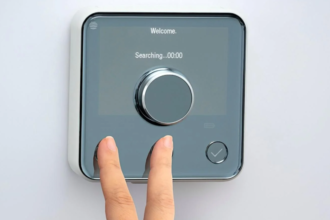
Welcome and Searching should display on the screen and your thermostat should connect to the receiver
The light on the receiver should change to solid green
To connect the receiver to hub for remote access and to control from Hive app, follow these steps:
Switch off the hub and then back on
The light on the hub should flash amber
If not, open the Hive app and select add devices
Turn off the Hive thermostat by removing the batteries
Turn off boiler from the spur or isolation switch which should be located next to your boiler. This will also turn off your receiver
Wait for 5 seconds before turning the boiler back on
Next, press and hold the heating button for 10 seconds – the light should start to flash. This indicates the receiver is in pairing mode
Now, insert the batteries back into the thermostat
Press and hold the menu and back button on the thermostat for 10 seconds and follow the instruction of the screen
Welcome and Searching should display on the screen and your thermostat should connect to the receiver
Since your hub was in pairing mode, above step will also connect your receiver to hive smart hub
The light on the receiver should change to solid green
TIP: To check what mode the receiver is on, you can turn it off and then on from spur/isolation switch. When receiver is turned back on, the status light will flash for 5 seconds
AMBER for Hive Active Heating, meaning its connected to Hub for remote access/app
WHITE for ‘stand-alone’ mode i.e., not connected to hub or you home broadband








Very helpful articles. I was able to fix the thermostat issue in no time after reading about the fix on this page. Thank you John!
I really appreciate the information you shared! This article is super interesting. I’ll save your site and check back regularly for new updates